1. Before Upgrade
1.1. Intro
This tutorial introduces how to download firmware to device through Type-A to Tyep-C USB cable.
1.2. Prepare
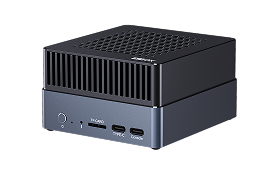
AIBOX-8550
Windows PC with x86_64 arch cpu.
Type-A to Tyep-C USB cable
1.3. Get Firmware
You can build firmware from SDK, or download from Resources Download (complete firmware).
Complete firmware
Complete firmware is an archive with every part (like parameter, bootloader, kernel, system, etc.) in it. Complete firmware will be an archive contains lots of files. Firmwares released officially by Firefly Team will all be complete firmwares. Download complete firmware to device will erase all data and partitions.
Partition image
A partition image only contains the content of a single partition. The most commonly used ones are boot.img and dtbo.img. Download partition images is often used for partial upgrades, functional verification, and comparative analysis. The prerequisite for using partition images is that the device is operating normally. If the device cannot boot up, only the complete firmware can be used.
1.4. Install Tools
Install USB drivers
Please download from USB Driver.
There are two drivers. First install Qualcomm USB Driver, double click the exe file to run, accept the EULA and always click “next”, finally click “finish”.
Then install Google USB driver, extract usb_driver_r13-windows.zip, right click the android_winusb.inf and click “install”, always click “confirm”.
Install QTSP
Please download form QTSP Tool.
Extract, then double click QPST.2.7.496.1.exe, accept the EULA and always click “next”, then click “install”, finally click “finish”.
After installation, the tool we need is C:\Program Files (x86)\Qualcomm\QPST\bin\QFIL.exe
Double click QFIL.exe to open it.
Install Android SDK Platform-Tools
Download from Platform Tools.
Extract it after download, you will find adb.exe and fastboot.exe