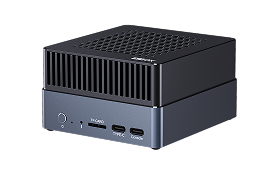
2. Upgrade Complete Firmware
2.1. Enter EDL (Emergency Download) mode
2.1.1. Hardware Way
The device should disconnect all power supply.
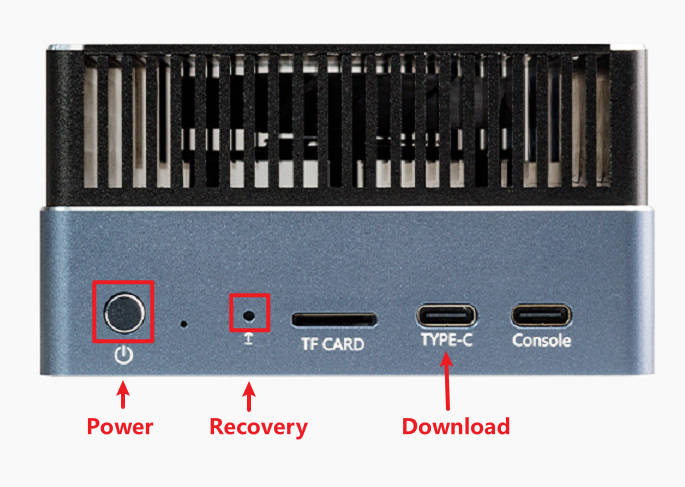
Use Type-A to Tyep-C USB cable to connected device’s download port with PC.
Use needle or other small tools, insert into recovery hole, press the button in it and hold.
Insert the DC power supply.
After 2 sec, release the recovery button.
2.1.2. Software Way
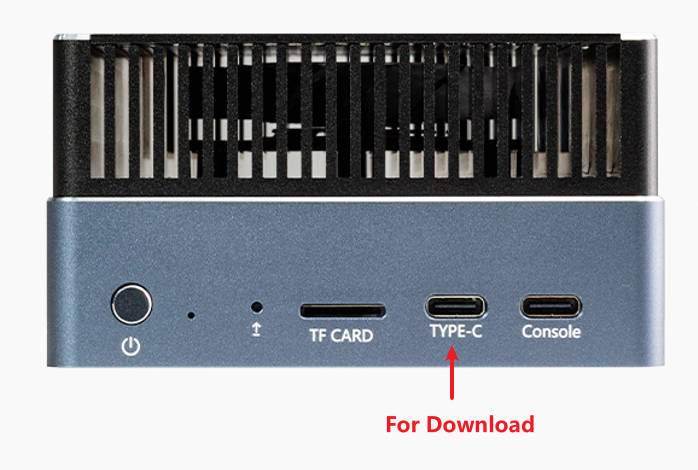
While the device is running normally, connect device’s download port with PC through Type-A to Tyep-C USB cable, run this command on device terminal or debug console:
sudo systemctl reboot edl
2.1.3. Check EDL
If the device entered EDL mode, QFIL tool will show “Qualcomm HS-USB QDLoader 9008”.
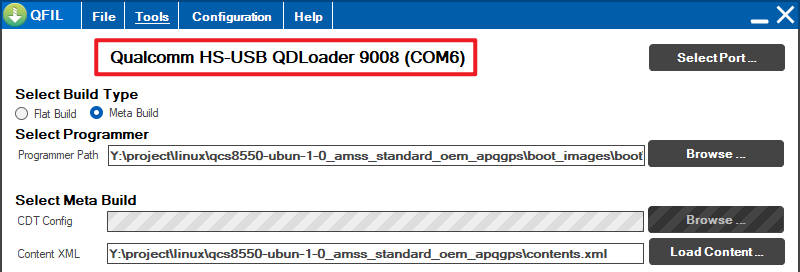
Or it could show “Please Select an Existing Port”, then you have to click “SelectPort”, also can see “Qualcomm HS-USB QDLoader 9008”, select it and click “OK”.
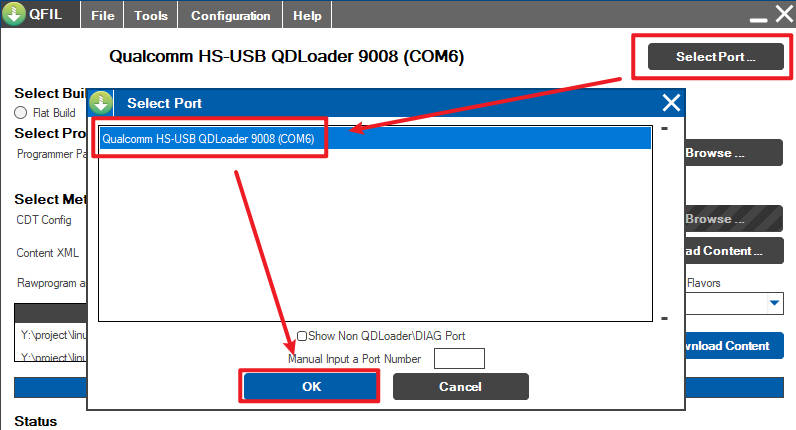
Notice: The code must be 9008 If the device shows other code like 900E, then it means device is abnormal, please poweroff it and retry.
If tool shows “No Port Available”, please check driver installation and usb cable.
2.2. Download Firmware
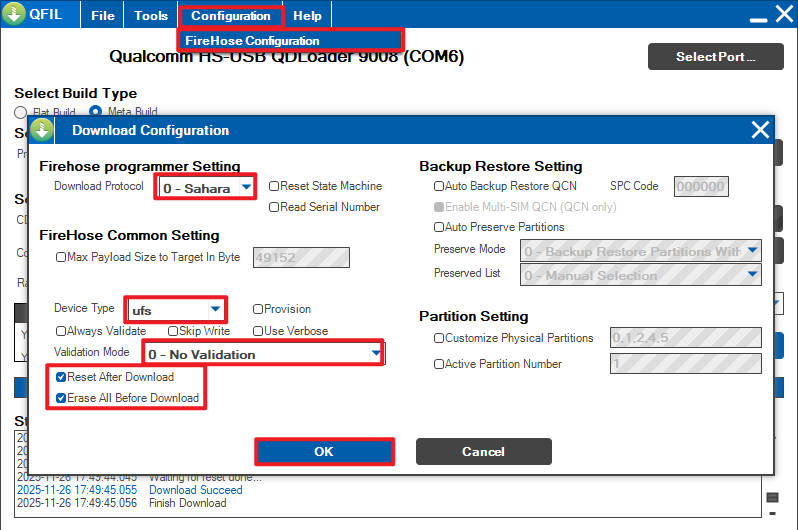
1 Click “Configuration”, then click “FireHose Configuration”, in the pop-up window, config it according to the following pictrue, then click “OK”.
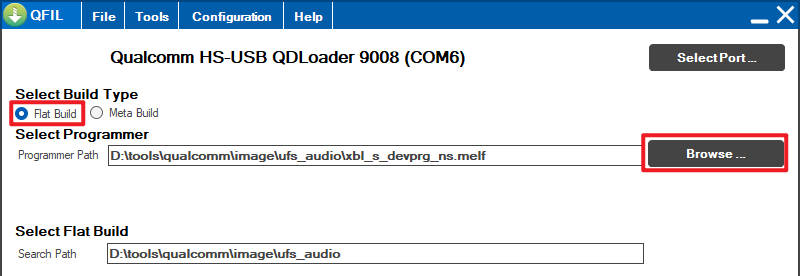
2 In the main page, select “Flat Build”, then click “Browse”
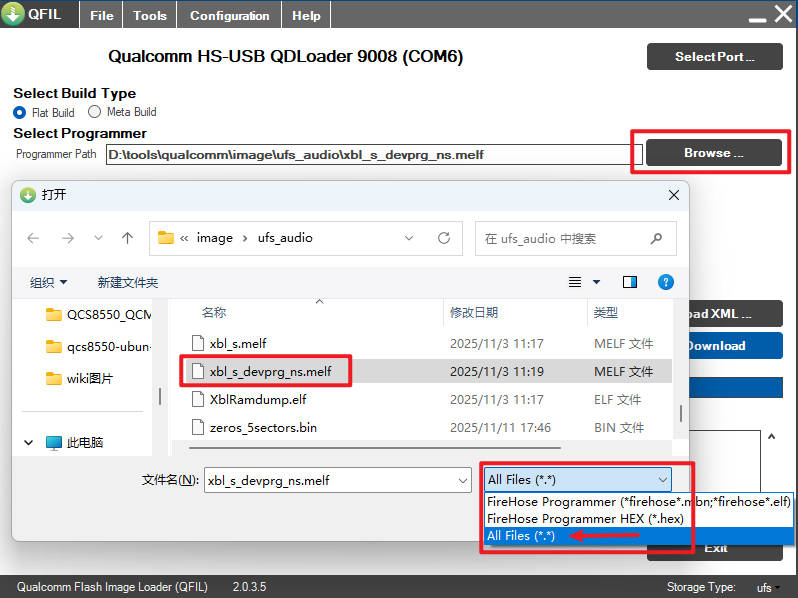
3 Navigate to your firmware location, choose “All Files” in file type, then find “xbl_s_devprg_ns.melf” (or maybe “prog_firehose_ddr.elf”, different SOCs very in filenames)and click “open”.
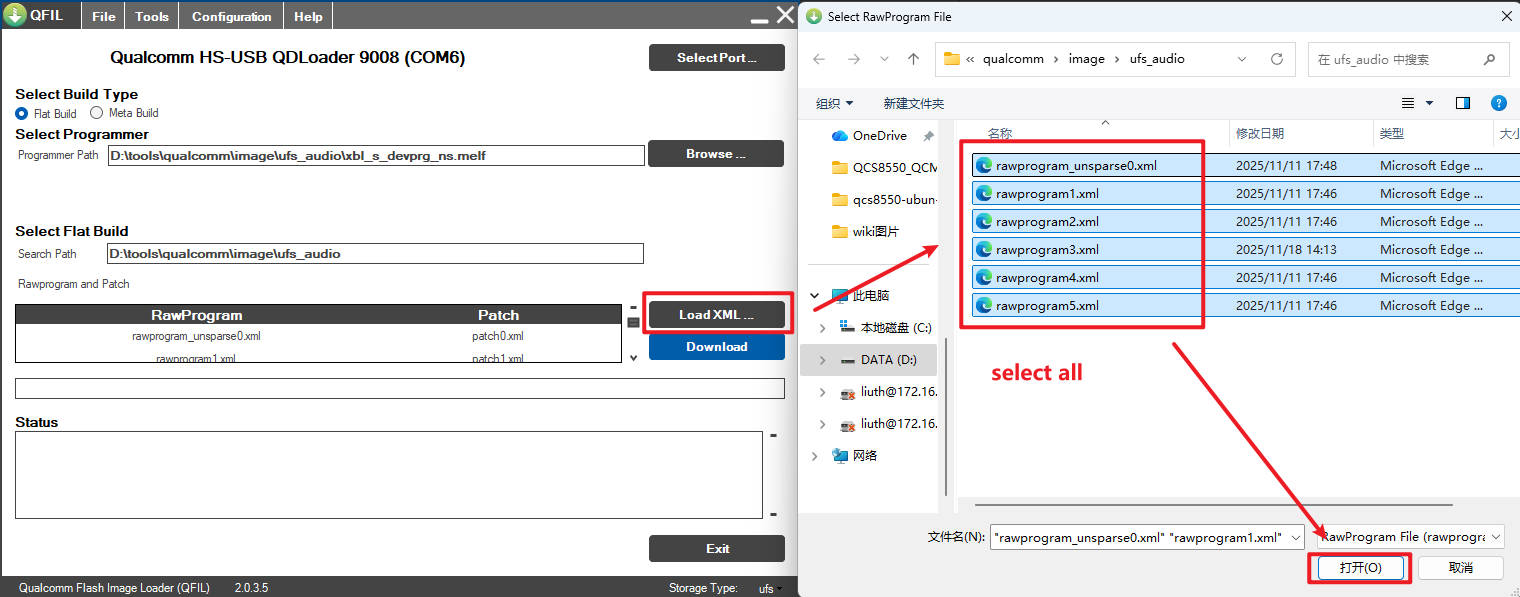
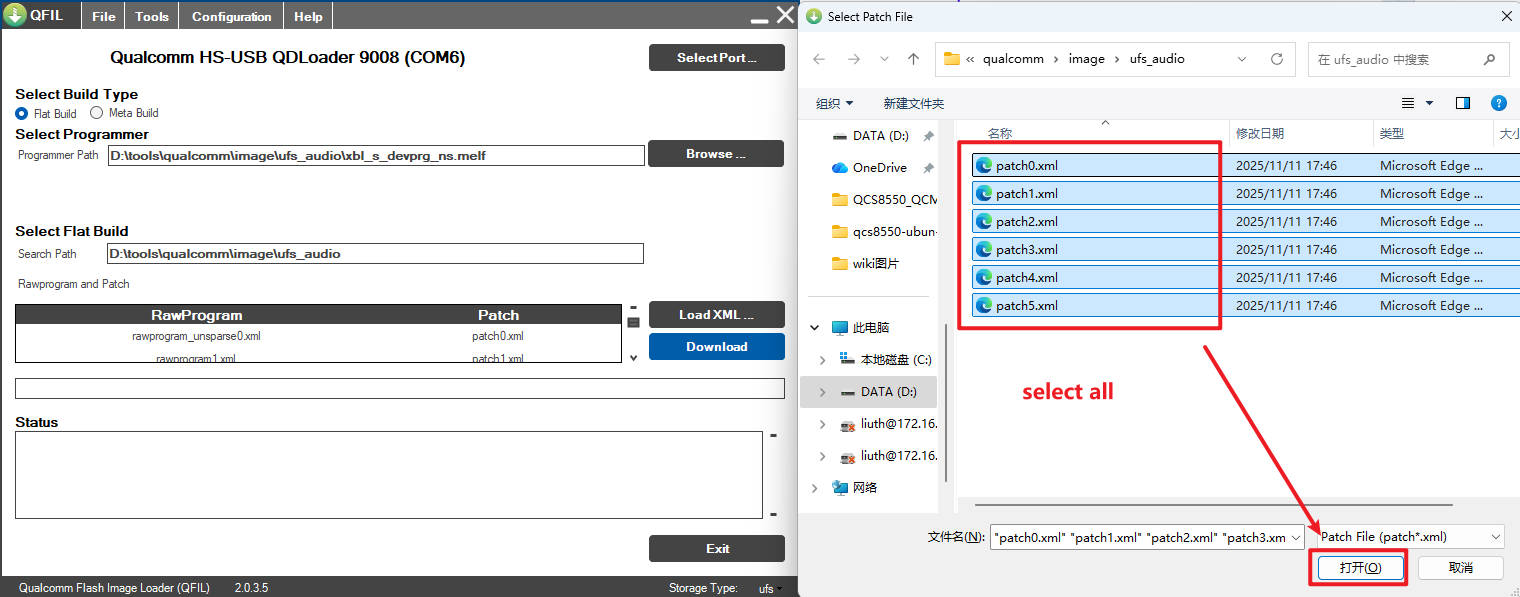
4 In the main page, click “Load XML”, in the pop-up window, select all xml files and click “open”, then the same window will pop-up again, and select all xml files again and click “open”.
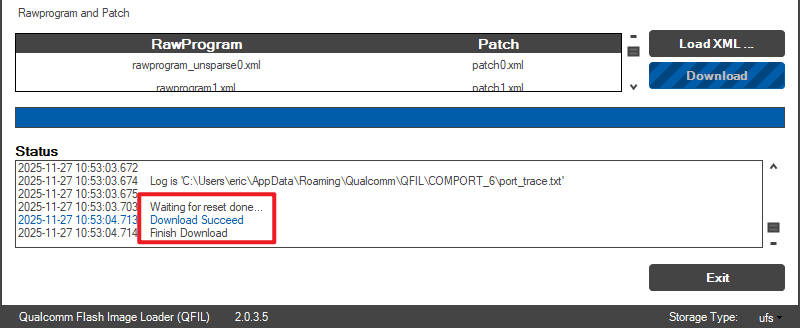
5 Finally click “Download”, wait it to finish, it will take few minutes. Download success will be like:
6 After the download is complete, wait for a while and the device will automatically reboot.