
Upgrading Firmware Using a USB Cable
Introduction
This article describes how to burn the firmware from the host device to the BOARD with space using Type-C 数据线. During the upgrade, you need to select the appropriate upgrade method based on the host operating system and firmware type.
Please read the “Flashing Tool User Manual” carefully before flashing. If it doesn’t display, please refresh the page.
Flashing Tool User Manual Link: https://spacemit.com/community/document/info?lang=en&nodepath=tools/user_guide/flasher_user_guide.md
Preparing firmware
Firmware can be obtained by compiling the SDK or downloaded from Resource Download. Firmware files generally come in two types:
Single Unified Firmware
Unified firmware is a single file packaged and merged from all files including the partition table, bootloader, uboot, kernel, and system. Officially released Firefly firmware uses the unified firmware format. Upgrading to unified firmware will update the data and partition table of all partitions on the motherboard and erase all data on the motherboard.
Multiple Partition Images
These are files with independent functions, such as the partition table, bootloader, and kernel, generated during the development phase. Independent partition images can update only specified partitions while keeping other partitions’ data intact, which is very convenient for debugging during development.
Installing the Flashing Tool
Windows Operating System
Download the latest version of the flashing tool titantools_for_windows.exe
Double-click the downloaded flashing tool titantools_for_windows_last to begin installation;
After installation, run titanflasher.exe
Linux Operating System
Download the latest version of the flashing tool titantools_for_linux.AppImage
Double-click the downloaded flashing tool titantools_for_linux_last to begin installation;
After installation, run titanflasher.exe
Download Linux_adb_fastboot and install it on your system using the following method for easy access:
sudo mv fastboot /usr/local/bin
sudo chown root:root /usr/local/bin/fastboot
sudo chmod a+x /usr/local/bin/fastboot
Entering Upgrade Mode
There are generally two modes for upgrading firmware: Loader mode and hardware flashing mode. Before flashing the firmware, we need to connect the device and put the board into upgradeable mode.
Loader Mode
Entering Loader Mode via Software
After connecting the Type-C Cable, run the following command on the board in the serial port debugging terminal. Do not use the adb tool to enter loader mode, as software entry into loader mode requires operation of the uboot terminal.
reboot
After the board system reboots to the uboot stage, press and hold the ‘s’ key to enter the uboot debugging terminal. Once in the uboot debugging terminal, delete any unnecessary ‘s’ characters from the input information. Execute the fastboot command to enter flashing mode:
fastboot 0
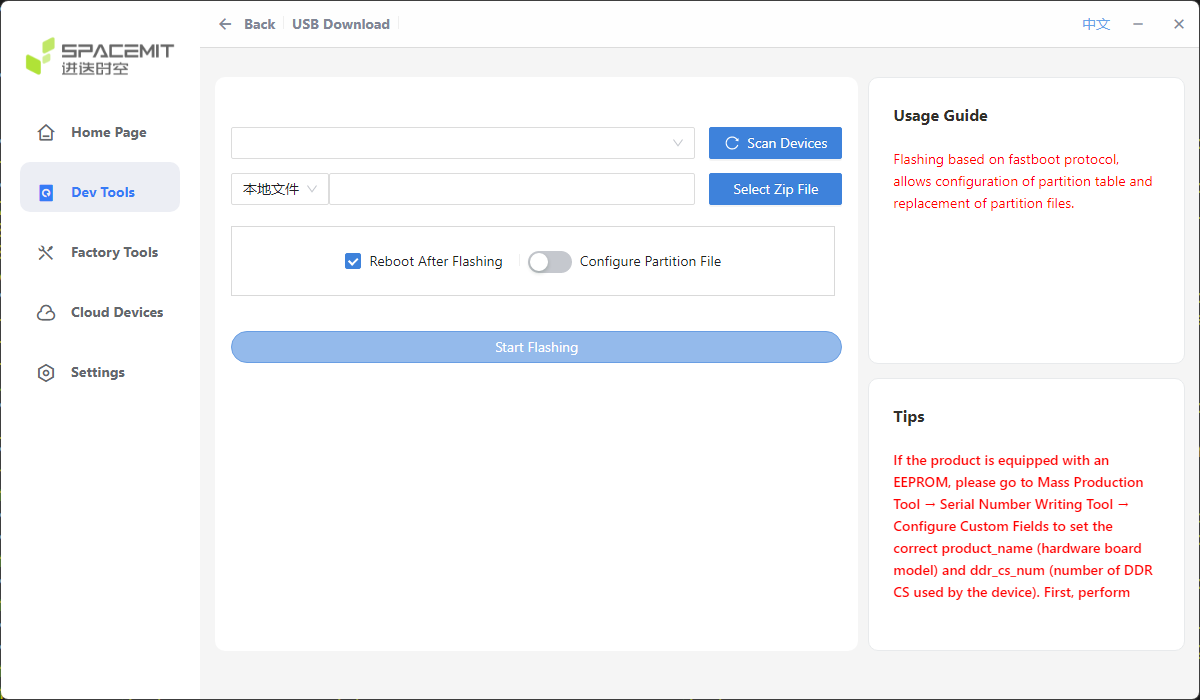
On the PC, in the titanflasher flashing tool, click: Dev Tools –> USB Download –> Scan Devices –> Local File –> Select Zip File –> Start Flashing.
Note: At this point, the titanflasher tool will flash a portion of the necessary firmware to the board, but not all of it. You need to press Enter again in the board’s uboot terminal to complete the subsequent firmware flashing.
Hardware Flashing Mode
For instructions on entering hardware flashing mode, please refer to Hardware Flashing Mode
Flashing Firmware
Flashing Unified Firmware
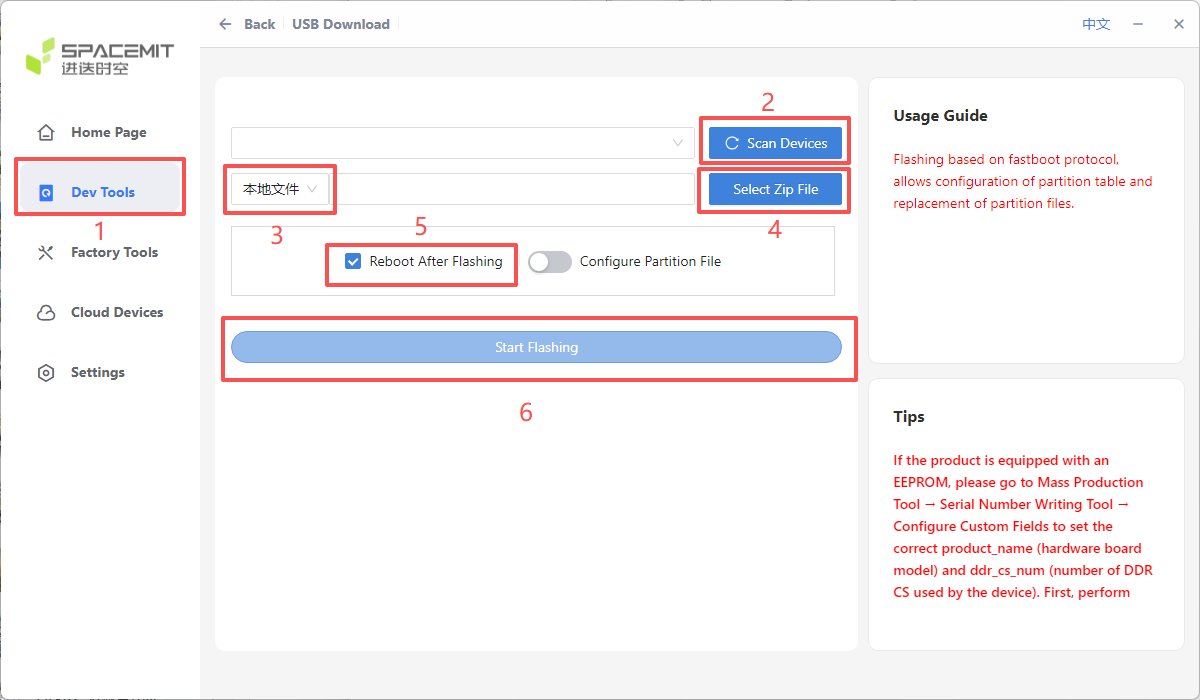
The steps for flashing the unified firmware package are as follows:
Click the following steps: Dev Tools –> USB Download –> Scan Devices –> Local File –> Select Zip File –> Reboot After Flashing –> Start Flashing.
Burning Partition Image
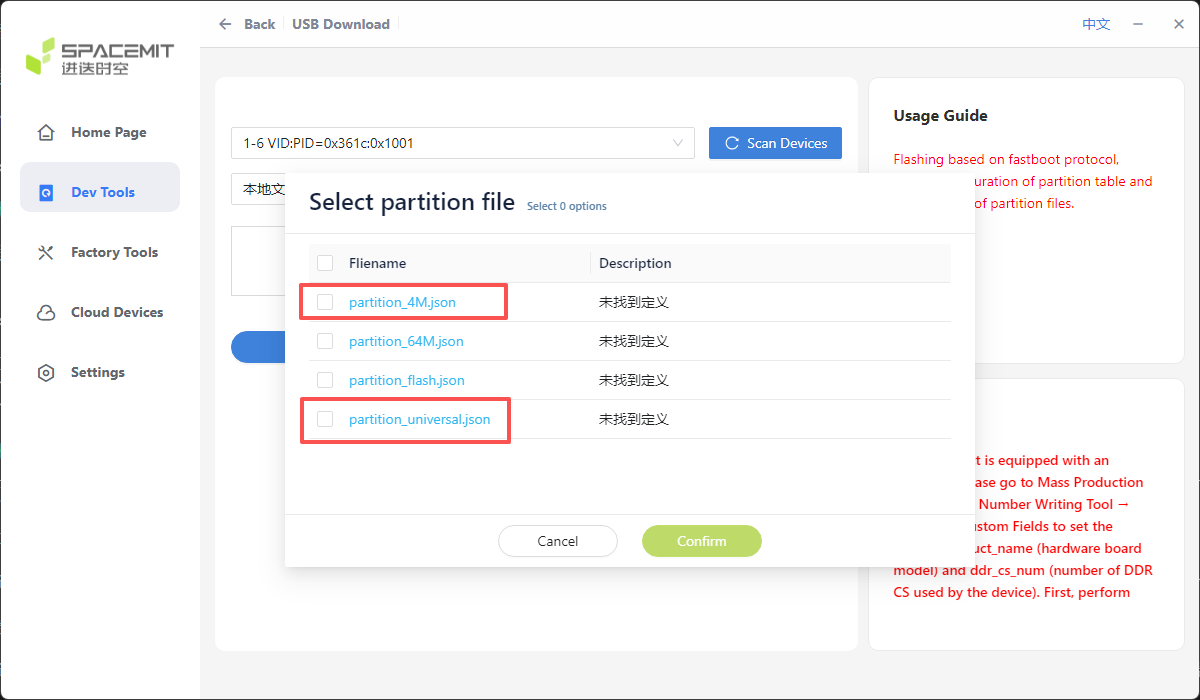
Click Steps: Dev Tools –> USB Download –> Scan Devices –> Local File –> Select Zip File –> Reboot After Flashing –> Configure Partition File –> Start Flashing.
Configuring partition files requires selecting the partition file.
partition_4M.jsonupdates the NOR flash on the core board.partition_universal.jsonupdates the UFS partition image on the core board.
Frequently Asked Questions
1. How to Force Enter Hardware Flashing Mode
If the board cannot enter Loader mode, you can try to force enter hardware flashing mode. See Hardware Flashing Mode for instructions.
2. Flashing Failure Analysis
If an error occurs during the flashing process, it is usually due to a faulty USB cable connection, a low-quality cable, or insufficient driver capability of the computer’s USB port. Please replace the USB cable or check the computer’s USB port.